

Here, as promised, we begin a series of articles related to how certain settings are made in the cloud, focusing on Microsoft Azure.
The first issue we encountered was how to move our site to Azure? Defining a new site is extremely simple: NEW -> Web + Mobile -> Web App. Fill in the required fields and that's it.
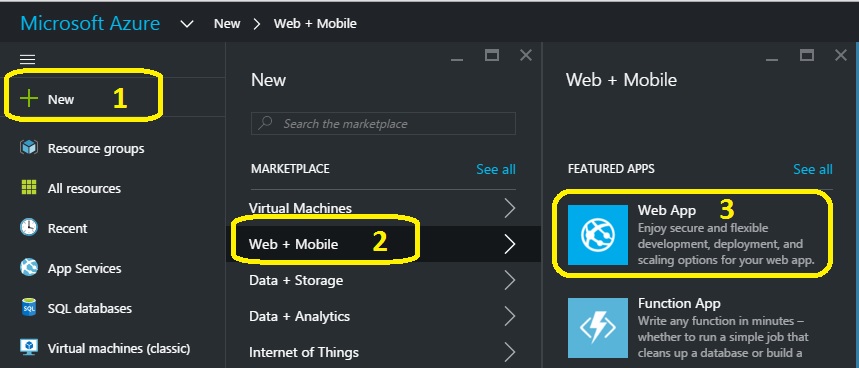
A new website is created. The problem is that it will not have our domain name (e.g., ApplicationName.com) but will be created under the azurewebsites.net subdomain (ApplicationName.azurewebsites.net).
Okay, okay; now you might ask how do we get from ApplicationName.azurewebsites.net to ApplicationName.com.
Well, here an external factor comes into play. Generally, to link a domain to the server where the web page physically resides, we must tell the internet the address of the server where the site is located. This is done by entering the domain into a global DNS (Domain Name System) database. There can be several options here; Microsoft recommends two such global databases: GoDaddy and DNSimple.
We chose to use DNSimple, which, as the name suggests, is very simple to use and has a modest cost (for pricing you will need to create an account). After logging in, all that's left is to set up for one of the three situations we are in:
- Registering a new domain;
- Transferring a domain;
- Using the DNS service.
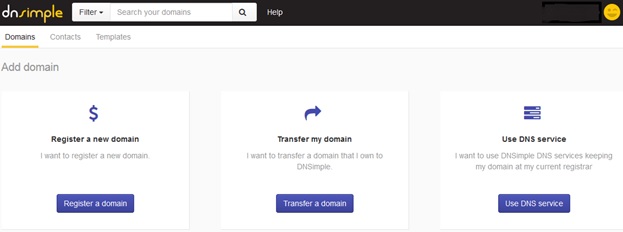
Register a new domain: you register a new domain; at that moment in the domain management, the name servers are automatically entered: ns1.dnsimple.com, ns2.dnsimple.com, ns3.dnsimple.com, ns4.dnsimple.com.
Transfer my domain: as above, the name server settings will be done automatically. However, here a fee may need to be paid.
Use DNS service: only DNS settings will be made. However, the name server settings will have to be done by us.
The first record that must be entered is awverify.CustomDomain.com pointing to awverify.CustomDomain.azurewebsites.net. This confirms that we are the administrators or owners of the respective domain.
We need to create the CNAMEs:
- Name: awverify; Alias: awverify.ApplicationName.azurewebsites.net;
- Name: www; Alias: ApplicationName.azurewebsites.net.
In Azure, for the newly created Web App, we must initially link to awverify.ApplicationName.azurewebsites.net as follows: click on the newly created Web App, Settings -> Custom Domain and SSL. Under HOSTNAMES ASSIGNED TO SITE, the following entries must be added:
- awverify.ApplicationName.com;
- www.ApplicationName.com;
- ApplicationName.com.
Of course, adding the last two records in Azure will take a few minutes, during which the domain is verified.
And that's about it! If certain aspects are unclear, do not hesitate to contact us or leave us a message in the comments section.